
User Tools
This is an old revision of the document!
Table of Contents
Editing Animations with a Control Rig
This is a guide for editing Mixamo animations using the Control Rig included with the plugin from v2.3.3 for Unreal Editor 5.5 onwards.
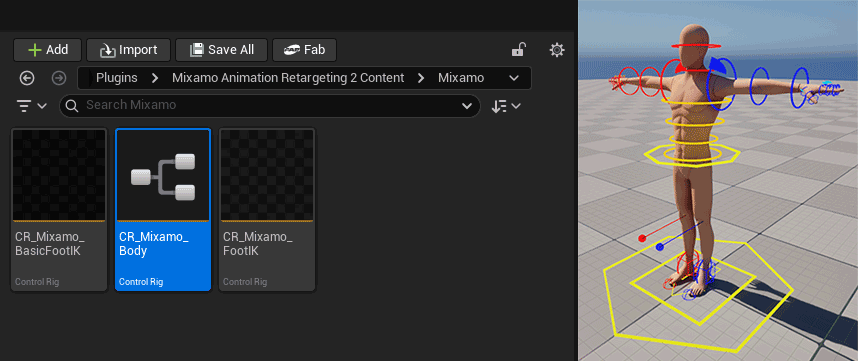
This can be a useful tool for adjusting animations both before and after retargeting, for example; fixing animation issues, or adjusting an animation to better fit the character or situation. The control rig can also be used to create animations from scratch such as custom idle animations, or additive poses.
Note: The same process can be applied to edit UE character animations using the Control Rig provided with the Third Person Template (Content > Characters > Mannequins > Rigs > CR_Mannequin_Body)
Quick Overview
This is a quick walk through of the editing process:
- Retarget the Mixamo character with the plugin.
- Add the character to a level sequence with a layered control rig track using the CR_Mixamo_Body rig.
- Add the animation sequence you want to edit to the animtation track of the character.
- Use the controls to edit the animation.
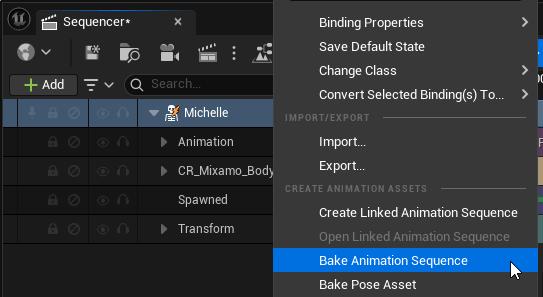
- Right click on the character track and use the Bake Animation Sequence option to export the edited animation.
Step-by-step
In this example we'll adjust the jog forward animation from the Third Person Template after it has been retargeted to a Mixamo character.
1. Import a Mixamo character and retarget using the plugin. Then retarget the MF_Unarmed_Jog_Fwd animation to the Mixamo character. See our Getting Started documentation on retargeting animations to Mixamo characters for more information.
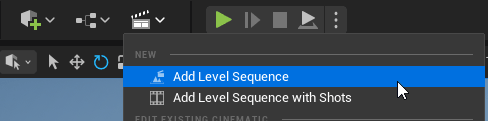
2. Create a new scene and add a new level sequence.
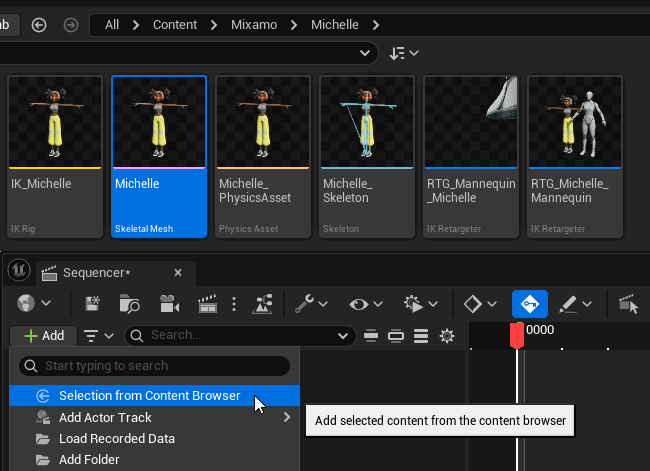
3. Select the Mixamo skeletal mesh asset in the Content Browser, then click the Add button on the sequencer window and choose the Selection from Content Browser option to create a new track for the character.
 You should now see the Mixamo character in the level with the control rig already applied along with the new track in the sequencer.
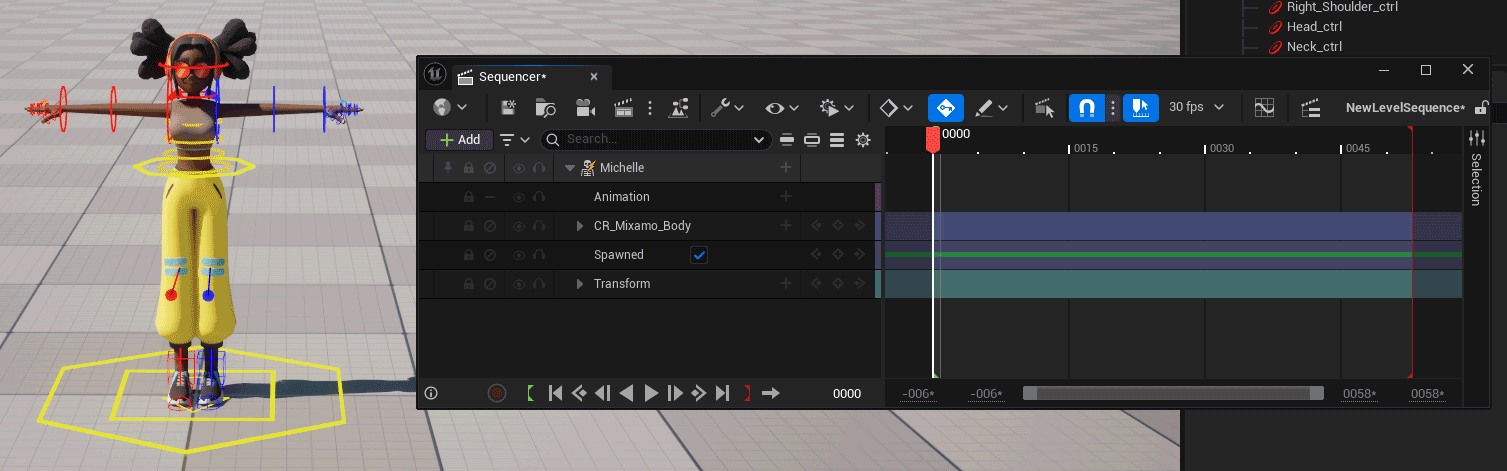
4. By default the Control Rig track in the sequencer is not layered, so needs to be replaced with a layered track to allow animation editing.
Delete the control rig track on the sequencer, then add a new track using the plus icon on the skeletal mesh track select Control Rig and enable the layered option then select the CR_Mixamo_Body rig.
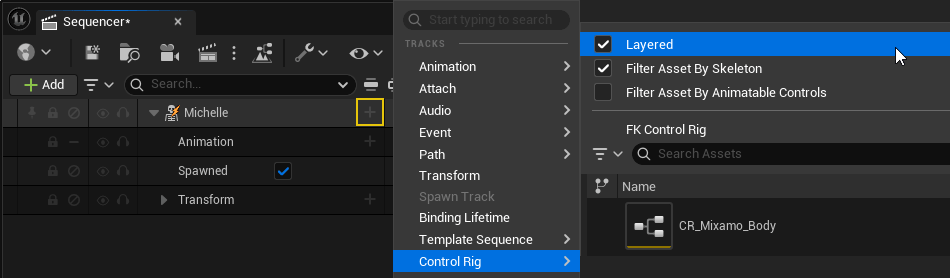 You should now see a track called CR_Mixamo_Body (Layered).
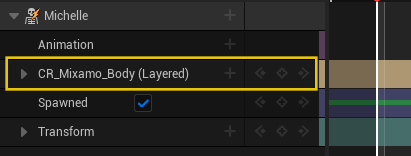 Note: There is an option to convert the control rig track in place, but it has known issues.
5. Add the retargeted MF_Unarmed_Jog_Fwd animation using the plus icon on the animation track or by dragging and dropping the asset from the content browser.
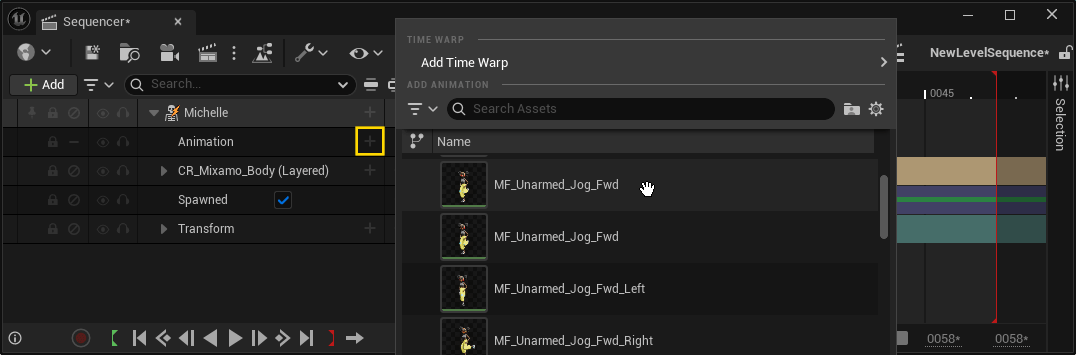 You should now see the animation on the character with the rig controls matched up to the character pose.
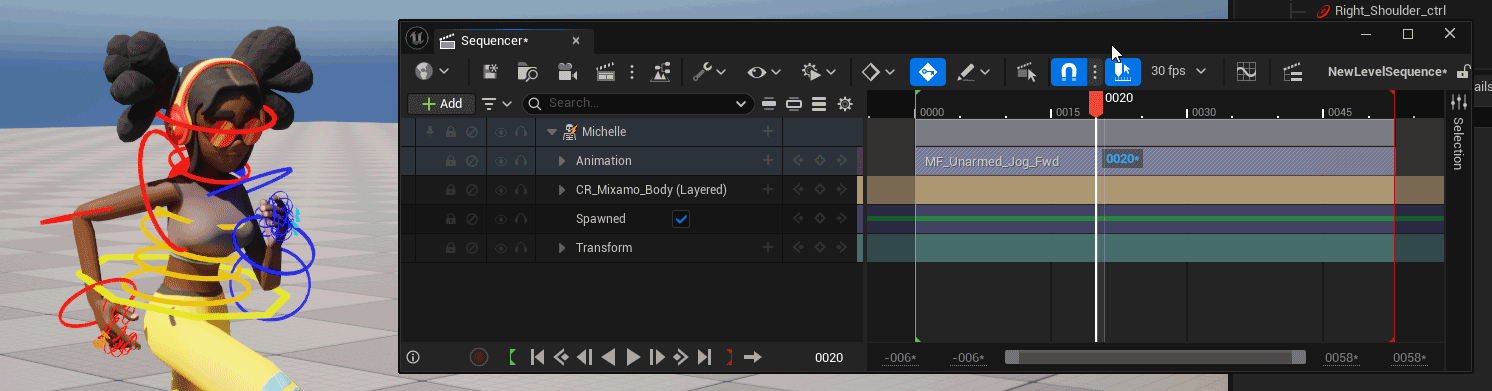
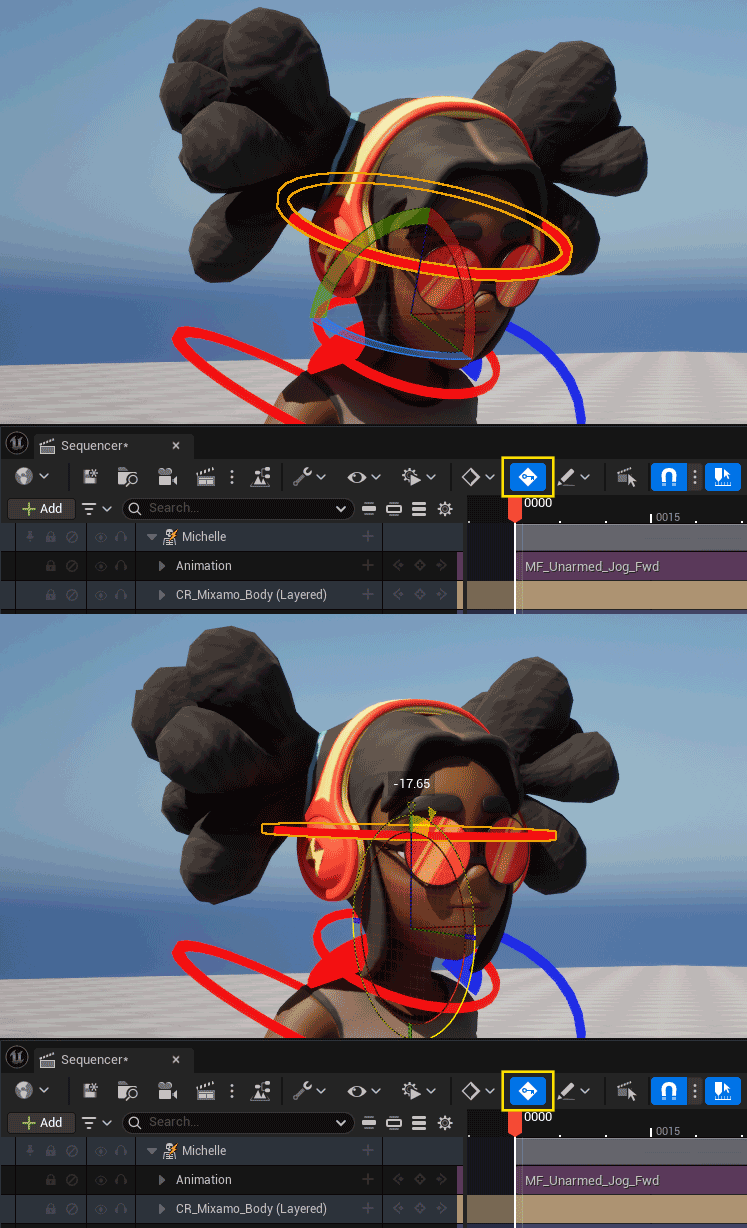
6. From here you can now use the animation controls to edit the animation as you like. In this example we'll simply adjust the head position to look forward.
Scroll to the first frame of the timeline and enable the automatic keyframe option. Then select the head control and rotate it to look forward. Hit play and you should see the adjusted head position is applied to the whole animation.
7. To save the edited animation, right click on the character track on the timeline and select the Bake Animation Sequence option. Leave the options on default and select the location to save the asset.
8. You should now have the adjusted animation asset.