User Tools
Table of Contents
UE5 Runtime Retargeting
The UE5 Retargeting system can be used at runtime to retarget animations in real-time during gameplay. Using this with the retargeting assets generated by the plugin is the quickest way to get Mixamo characters working with existing animation systems such as the Third Person Project template and the ALS plugin.
It's important to note that there is a performance cost to running the retargeting system in real-time. If performance is a concern, then it's better to generate the retargeted animation assets offline. For an idea of the offline retargeting workflow we have a guide for using Mixamo assets with the Third Person template.
Runtime Retargeting Example Setup
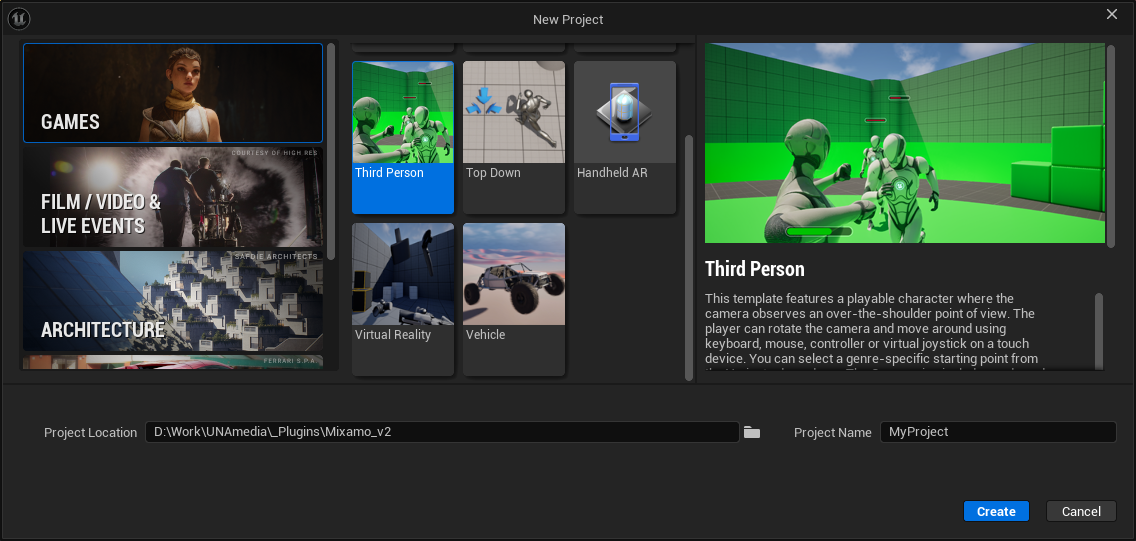
For this example we will use the Third Person project template.
Step-by-step
1. Import your Mixamo character and retarget with the plugin picking the SK_Mannequin as the target.
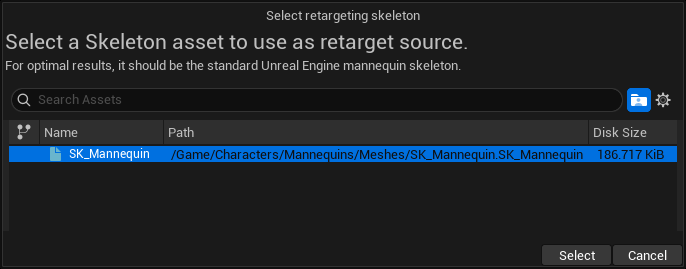 See our Getting Started guide for more information on the retargeting process.
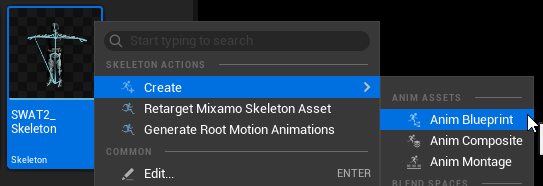
2. Create a new animation blueprint for the Mixamo character by right clicking on the skeleton asset and selecting Create > Anim Blueprint. This will be used to perform the run-time retargeting on the Mixamo character.
Open the animation blueprint, add a Retarget Pose From Mesh node and connect it to the Output Pose. In the details panel for the node, make sure the Retarget From option is set to Parent Skeletal Mesh Component, and set the IKRetarget Asset to the Mannequin-to-Mixamo retargeter asset generated by the plugin (RTG_Mannequin_<Mixamo-Skeleton>).
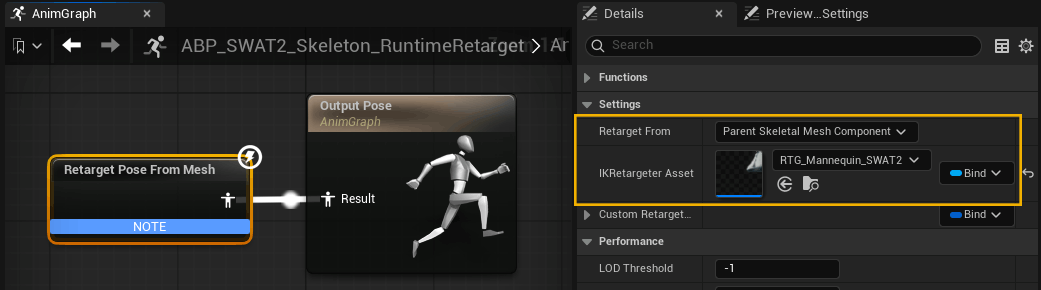
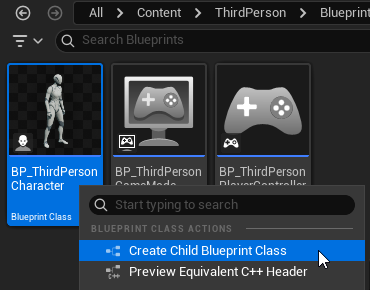
3. Create a new child blueprint (or duplicate) of the third person blueprint ThridPerson > Blueprints > BP_ThirdPersonCharacter.
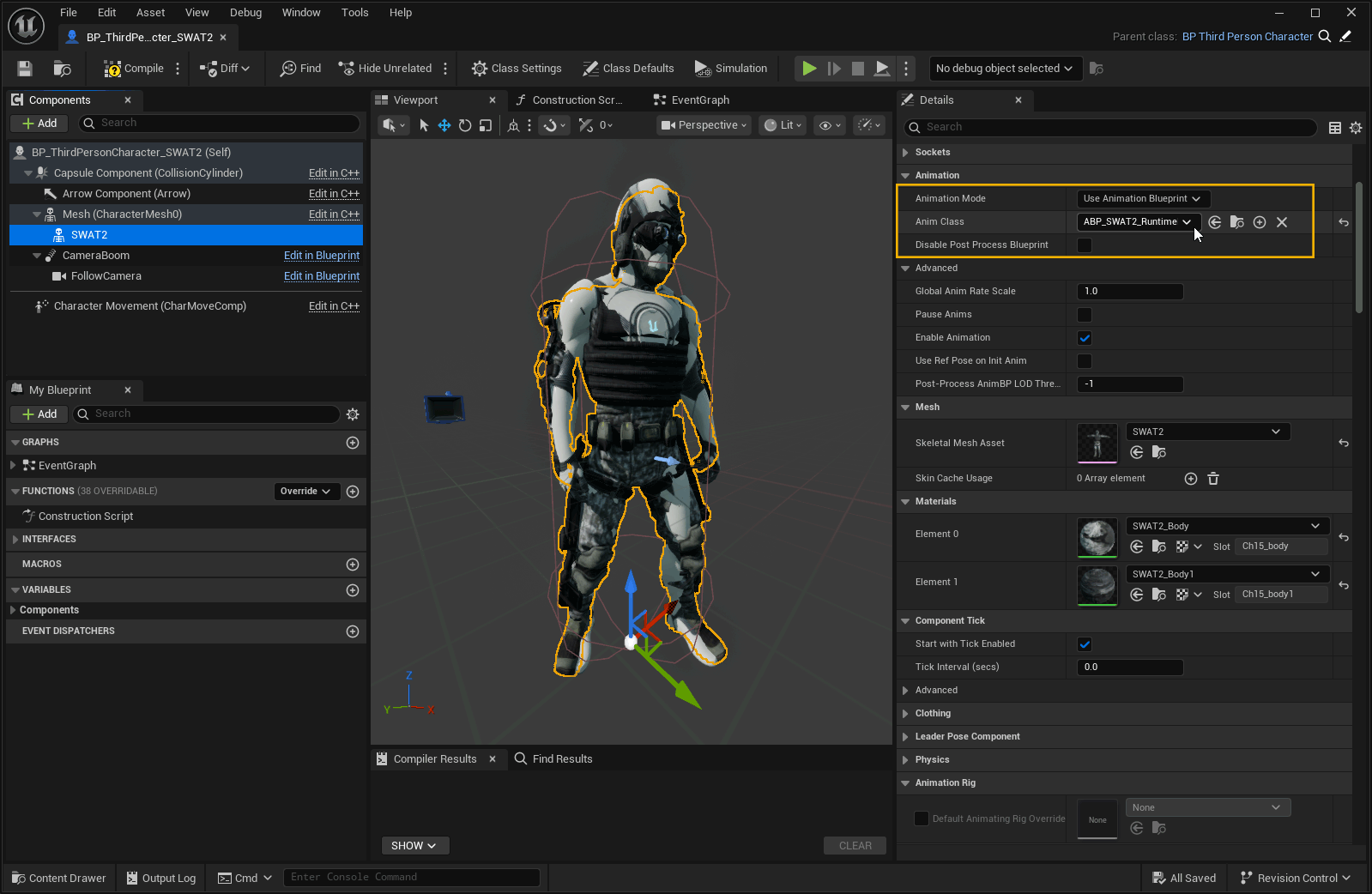
Open the new blueprint and add the Mixamo skeletal mesh as a child of Mannequin skeletal mesh. Set the Anim Class for the Mixamo mesh to the Animation Blueprint created in step 2.
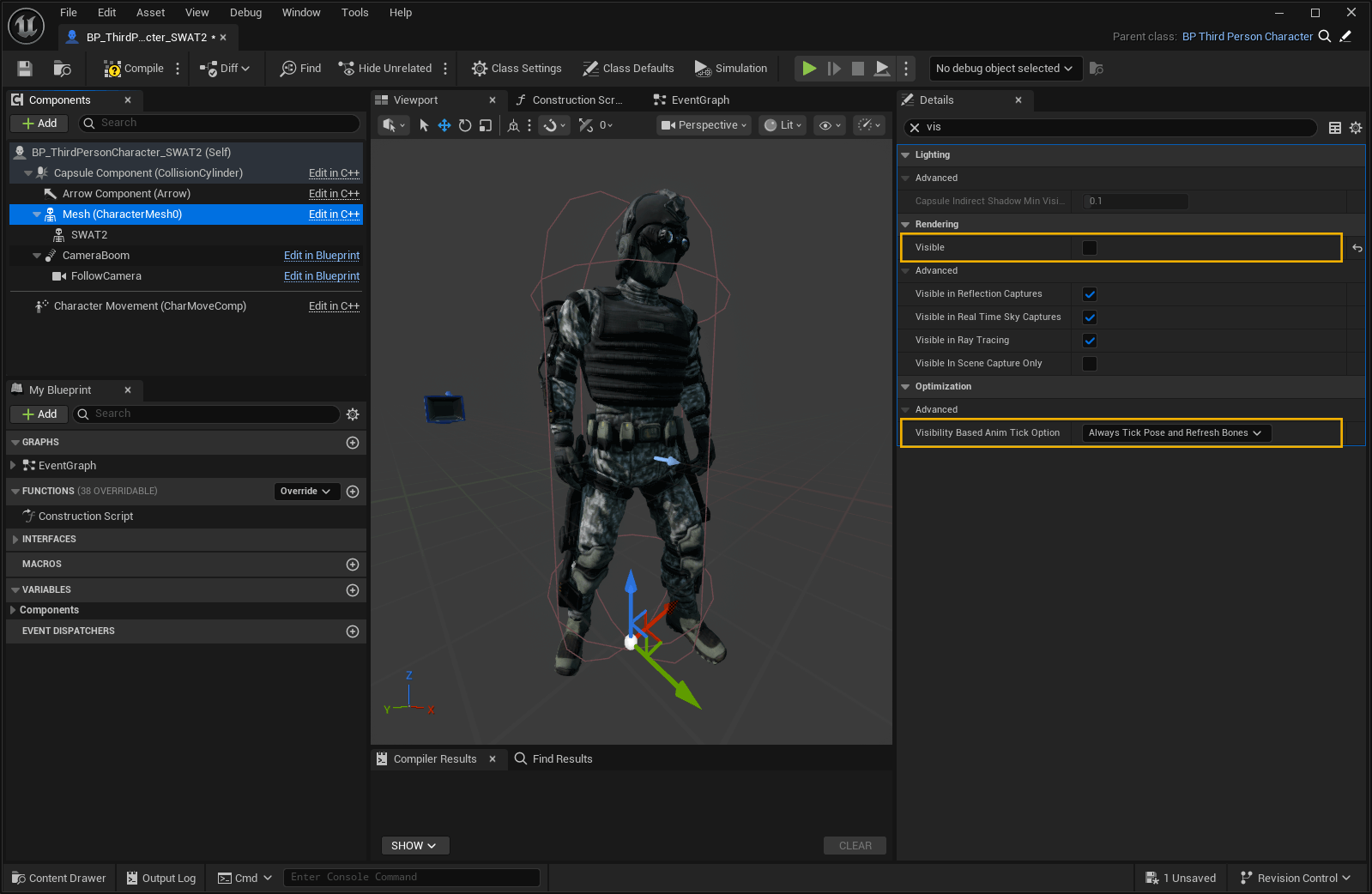
Now hide the Mannequin mesh by unchecking the Visible option and set the Visiblity Based Anim Tick Option to Always Tick Pose and Refresh Bones - this setting allows the animation to update when the mesh is hidden.
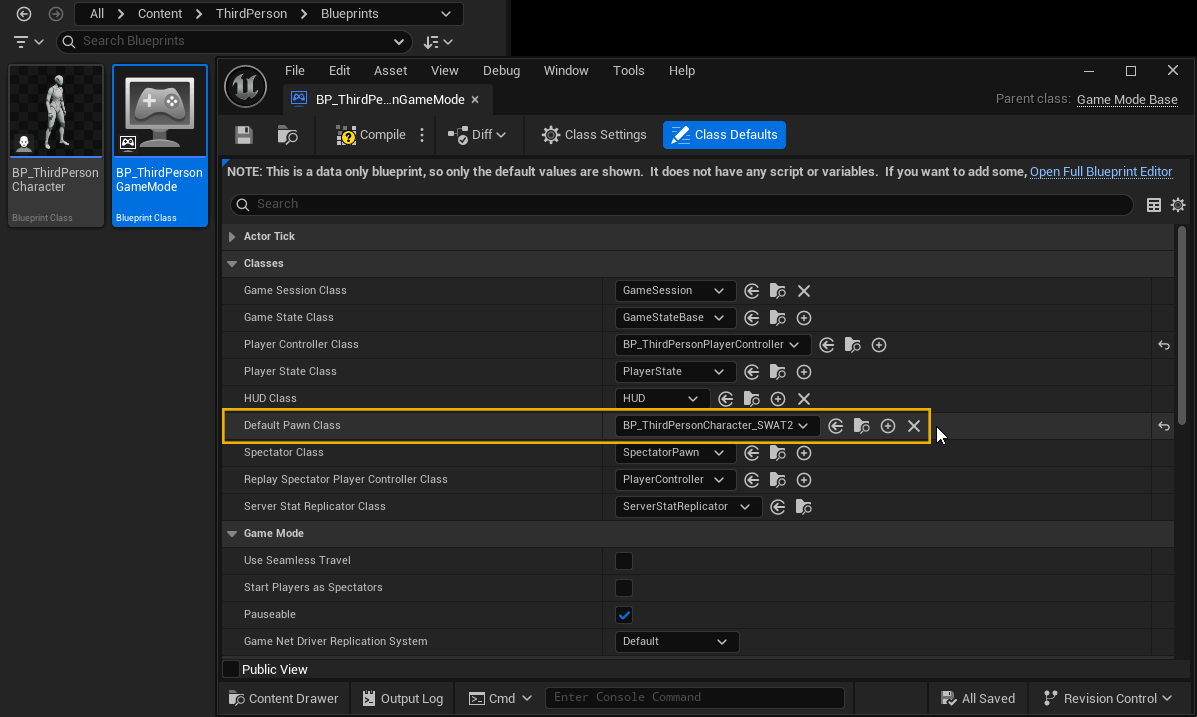
4. Open the Game Mode asset ThirdPerson > Blueprints > BP_ThirdPersonGameMode and change the Default Pawn Class to the new blueprint.
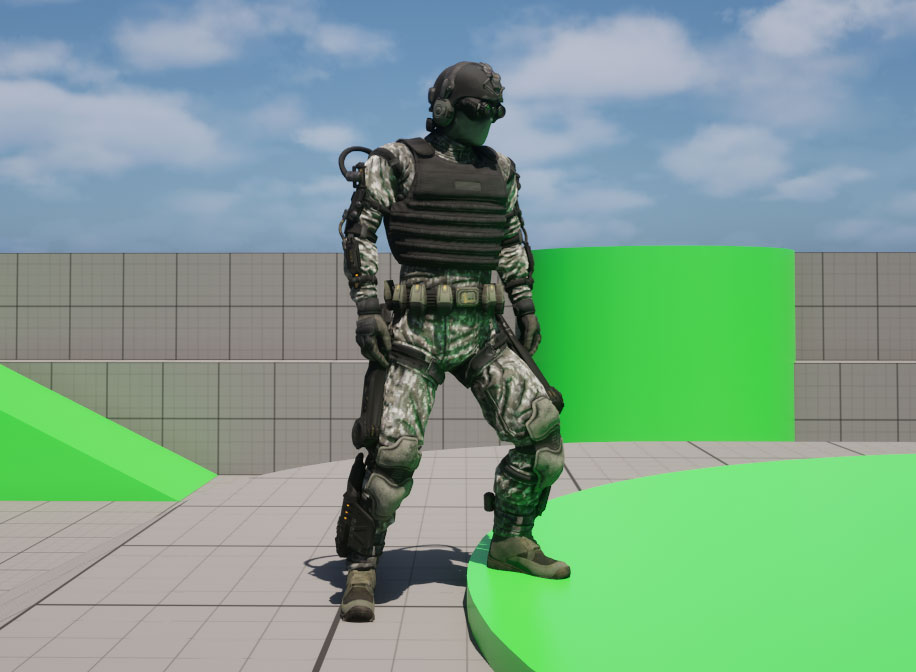
Open the third person demo level (ThirdPerson > Lvl_ThirdPerson) and click play. You should now see the third person game running with your Mixamo character instead of the Mannequin.
Optimising Runtime Retargeting Performance
IK Retargeter
As of UE 5.7, the IK Retargeter now includes some options for optimisation.
Op Stack Profiling
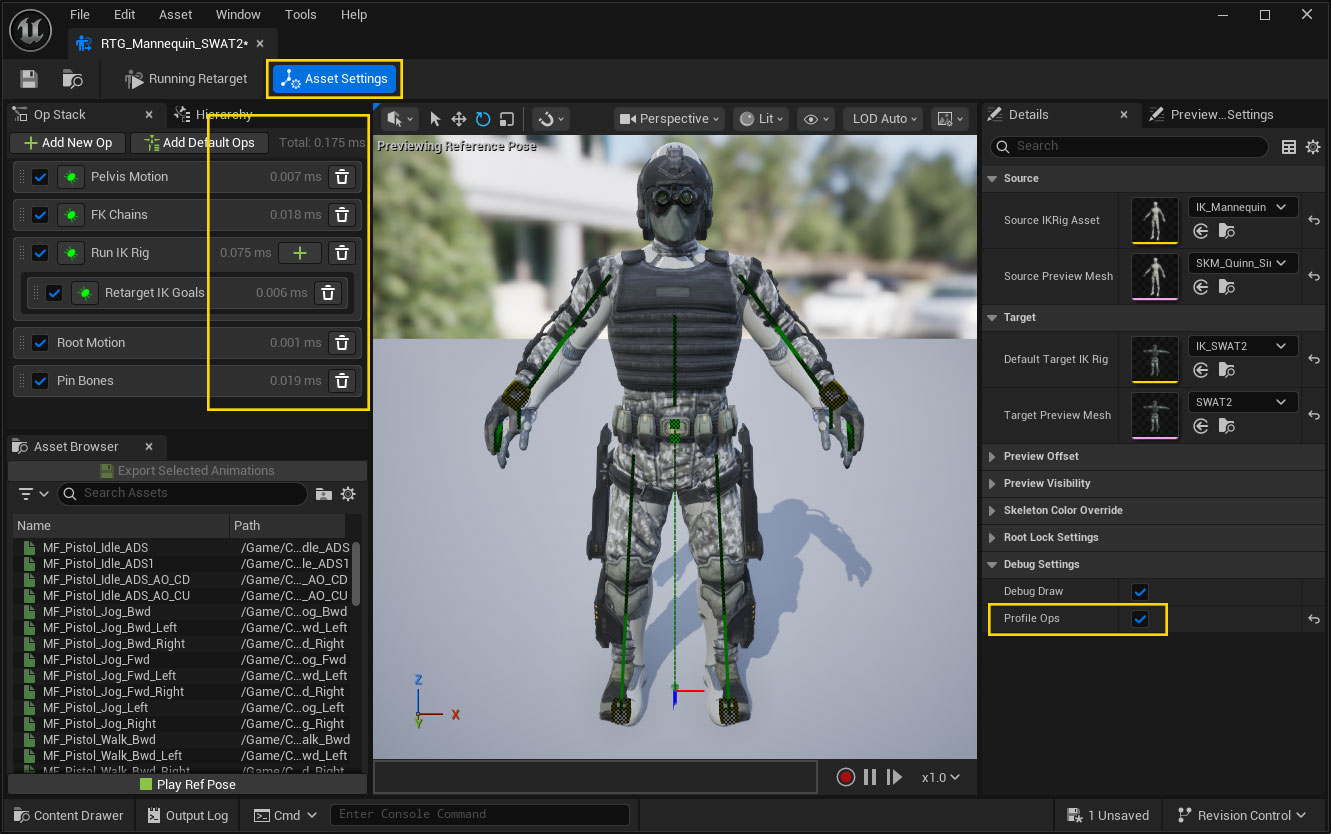
Enabling the Profile Ops option in the Asset Settings will display how much time is taken to process each retargeting operation in the Op Stack along with the total time at the top.
Retarget Operation LoD
Each retarget operation now has it's own LODThreshold setting that can be used to disable the operation based on the current LoD of the character.
A good candidate for this setting is the Run IK Rig operation, which is relatively expensive to run, and can likely be safely disabled at a distance where the difference in retargeting accuracy wouldn't be so noticeable.
IK Rig Optimisation
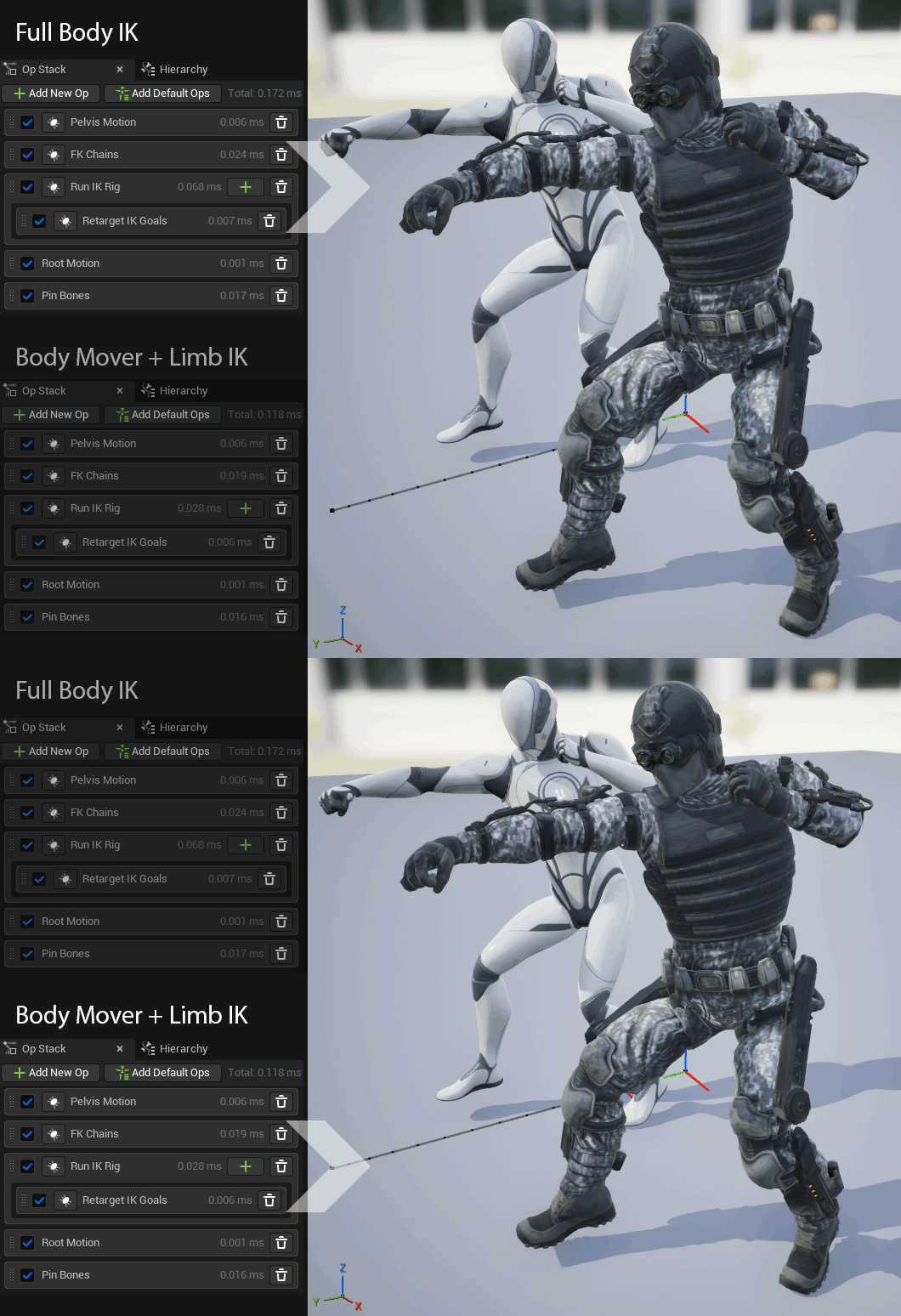
The IK Rig assets generated by the plugin use a standard Full Body IK solver. This is a high quality IK solution that allows the whole body move naturally in order to reach target IK goal positions. It's the best option for IK Retargeting and offline generation of retargeted animation assets, however it can be expensive for runtime application.
A similar result can be achieved by replacing the Full Body IK with a Body Mover and Limb IK Solvers. This is cheaper to run, and it most situations only has minor differences in results.
Optimised IK Rig Setup
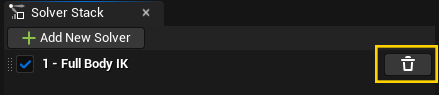
1. Create a duplicate of the generated Mixamo character IK Rig asset and open it. In the Solver Stack, click on the bin icon next to the Full Body IK solver to remove it.
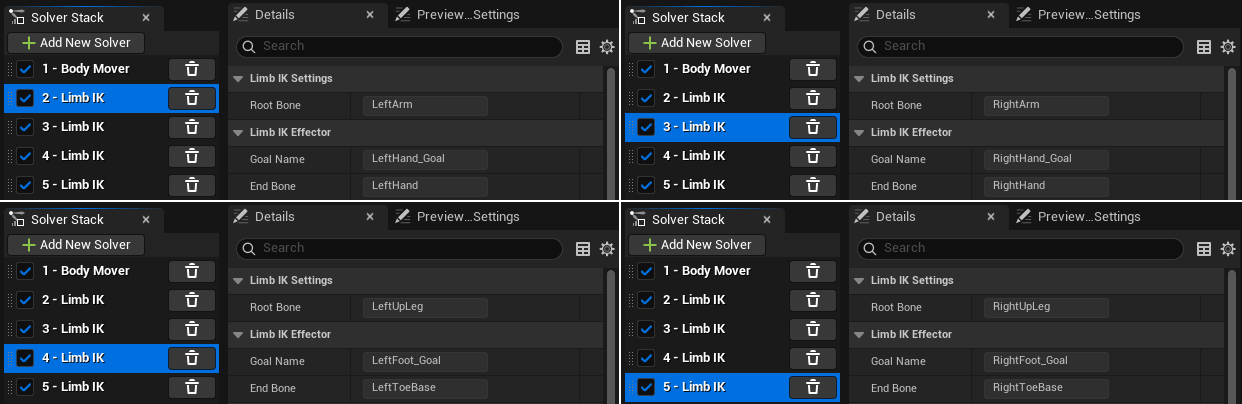
2. Click the Add New Solver button to add a Body Mover solver, followed by four Limb IK solvers.
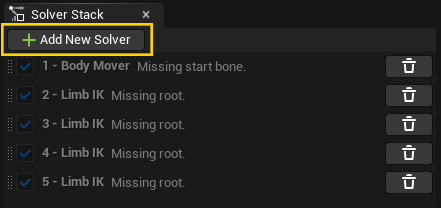 Note: This stack is executed in sequence from top to bottom, so the body mover need to be first for the correct result.
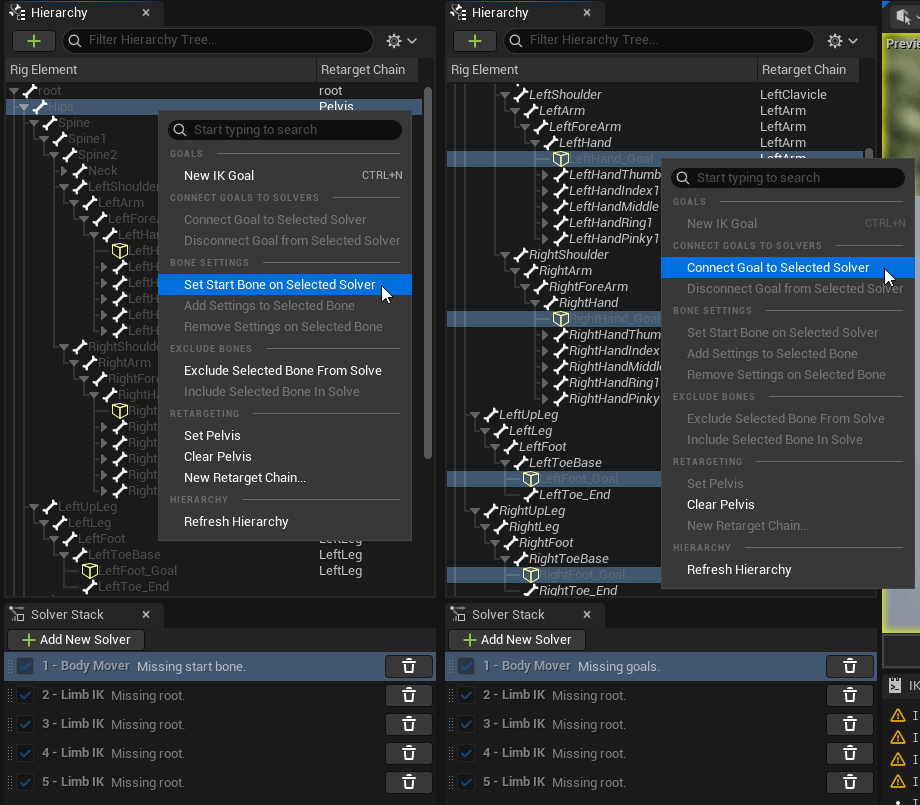
3. Select the Body Mover solver, then right click on the Hips bone in the hierarchy and select Set Start Bone on Selected Solver. Then select the IK Goal for each Limb (displayed with a yellow box icon) and right click and select Connect Goal to Selected Solver.
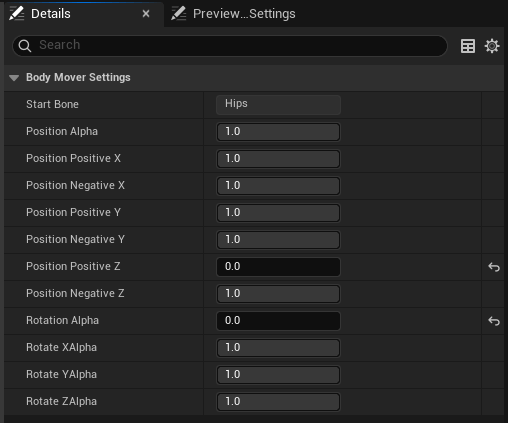
 In the Details panel, set the Rotation Alpha and Position Positive Z weights to zero. This will remove unwanted body rotation and prevent the character from floating in the air to reach IK target positions.
4. Now set up a Limb IK solver for each arm and leg by assigning a start bone and IK goal. For the arms set the start bone to LeftArm / RightArm, and for the legs set the start bone as LeftUpLeg / RightUpLeg.
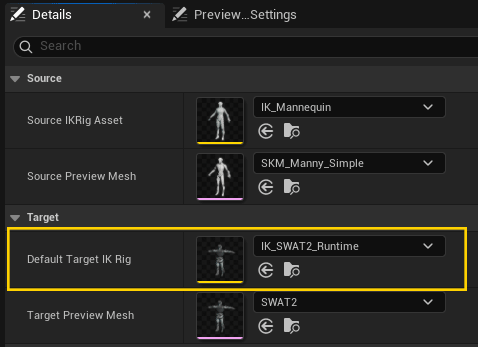
5. Finally, open the IK Retargeter asset, and in the Asset Settings, set the Default Target IK Rig to the new optimised rig.